An Exercise in Image Processing.
Today I thought I’d present an exercise in image processing using Photoshop CS3. I’ve been posting images, mostly from my various travels, on this blog for a while now. There’s been a fair variety of different presentations, from colour to black and white, tonings, vignettes, selective focus, pan blurs, stitched panoramas and so on. On the technical side I’ve provided details regards the camera settings, lenses etc and I’ve managed to tell some of the stories about the “what, where and when” regarding the subjects. But coming up with pleasing images isn’t just about being in the right place at the right time with the right gear and “getting the shot”. It’s also about image processing and presentation.
The subject of digital processing and presentation is almost as broad as the subject of photography itself. So today I’ll explore the processing/presentation theme and invite you to take a look under the bonnet so to speak. (note: “bonnet” that’s the same as “hood” for my American friends) So…..
Original capture: Mamiya 7 II medium format rangefinder with 80mm lens (approx 40mm lens 35mm equivalent) aperture and shutter speed not recorded.
Fujicolor NPH 400 colour negative film. Scanned with Epson V700 flatbed scanner (2400 dpi scan).
Decisions, decisions, decisions!
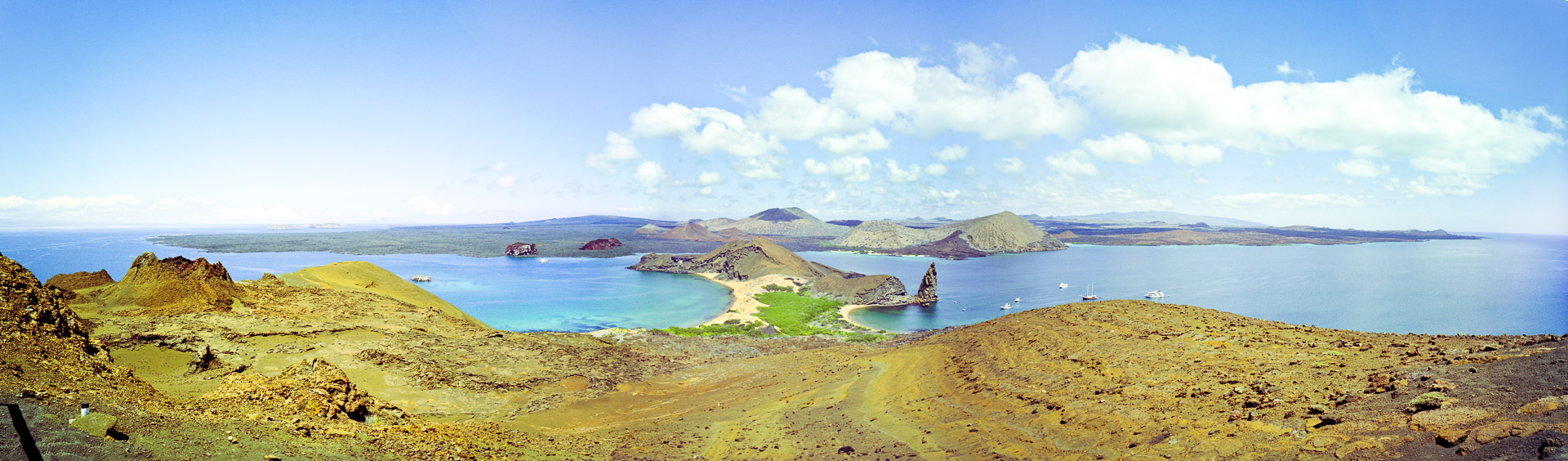
This shot is one I took from a boat whilst visiting the Galapagos Islands back in 2005 (more about that later) There have long been numerous choices available to us as regards to processing and presentation of images going back to the pre-digital days. However with digital technology we have so many more options and such fine control over those options, we are blessed. When looking at the original frame we can see that there are numerous possibilities. Do we wish to stay with the almost square format, do we wish to retain the colour? The picture was taken from a boat, do we wish to retain the foreground detail of the railing? It kind of tells us part of the story. There are no really right or wrong answers to any of these questions, in the end it comes down to individual choice, perhaps personal style? The choices are as individual as the people making them.
My choice was a moody, high contrast, black and white treatment in panoramic format with selective sharpening, blurring and vignetting! What would your choice have been?
In 2005, I was fortunate enough to travel through Latin America, and of course my camera(s) went with me. After touring through the Yucatan Peninsula region of Mexico, and some of the neighbouring countries, I visited the Galapagos Islands. Famed, from the time of Charles Darwin’s visit aboard HMS Beagle, for their extraordinary and unique wildlife, the islands continue to inspire. During the course of my visit I used two film cameras, a Pentax SF7 35mm SLR and a Mamiya 7 mk 2 medium format camera. The following shot was taken using the Mamiya on 6×7 colour negative film, the negative was subsequently scanned using an Epson V700 flatbed scanner to give the “raw” tiff file which was then processed with Photoshop CS3. This article gives an outline of the processing steps I used.
Adobe’s Photoshop has become the “standard” for digital image manipulation. The program is so fully featured that I doubt whether there are many people at all who know, let alone use, all it’s possibilities. Yet despite the hundreds, or even thousands, of possible techniques and methods, the use of just a few can yield pleasing results.
| Figure 1: the TIFF file prior to processing. As can be seen, the image was captured from the deck of a boat and shows the shoreline of one of the islands. Depth of field is sufficient to retain detail from the foreground handrail through to the horizon. There are some issues with the initial file that need to be addressed. Firstly the horizon is not level. There are some dust spots on the image which need to be removed and then there are decisions to be made, how do I want to display this image? After cropping the image, spot removal will be done with the spot healing brush (keyboard shortcut J) (I won’t give a detailed example of this here as the spots at this displayed image size are barely visible anyway) |
|
| Figure 2: The image is levelled by use of the ruler tool. Nested with the eyedropper tool (keyboard shortcut I ) the ruler is clicked on the horizon line and then dragged and clicked on another point on the horizon to form the correct horizon or level. Once the ruler line has been drawn, select Image/Rotate Canvas/Arbitrary. This brings up a dialog box indicating the direction and extent to which the canvas will be rotated. Photoshop works out the amount automatically so click OK. The image is now level. Next a decision can be made about cropping the image to the preferred aspect ratio. This is very much a matter of personal preference. Keyboard shortcut C for the cropping tool. The extent of the crop is indicated here by the colour overlay. Hit enter to commit the crop. (figure 2a) Rotated and cropped image. |
|
| Figure 3: Set black and white points with a levels adjustment layer accessed via the adjustment layer icon. In this case a fairly subtle change. The left slider is dragged to the right to set those values on the histogram which should output as black. The right slider is dragged left to set those values that should display as white. As can be seen, there were originally no values below 15 nor above 253 so no clipped blacks or whites. By setting the black and white points in this way the overall contrast of the image is increased. |
|
| Figure 4: The black and white conversion. There were a couple of ways I could have gone with this image. Firstly to stay with colour, in which case I probably would have increased the colour saturation given that the shot was taken in flat middle of the day light and is fairly washed out, or go to black and white. There are numerous ways of converting to black and white, I use a black and white conversion adjustment layer. It’s simple to scroll through the filter presets till you get an effect that is close to what you require. The filter presets mimic the effect of using coloured filters in traditional black and white film photography. In this case I used the “red filter” preset as I was looking for increased sky contrast. | |
| Figure 5: Curves for contrast. At this point I decided I wanted even more contrast in the sky and to darken the mid tones. Once again a curves adjustment layer was selected via the adjustment layer icon. I placed a point on the light tones of the clouds so that those values didn’t move and then pulled down the mid tone values. By steepening the curve, the contrast was increased. I then applied a mask to the curves layer so that the effect was not as pronounced on the foreground. |
|
| Figure 6: Dodging and burning. In the traditional darkroom, different parts of a print could be given different amounts of exposure under the enlarger to either “dodge” or lighten values, or “burn” or darken values. In Photoshop I created a new layer via the create new layer icon and filled that layer, keyboard shortcut Shift+F5 to select the dialog box. In the dialog box I chose to fill with 50% grey and put the layer into soft light blend mode. Doing this has no immediate effect on the image. The effect is seen when you use a soft edged brush at low opacity, say 10%, and then brush with white over those parts of the image you wish to lighten and with a black brush over the parts you wish to darken. I used this method to lighten part of the clouds and specific areas of the land, and darken the top, bottom and corners of the image to give a vignette effect. |
The final image:
The final stage was the application of selective sharpening and blurring. Smart sharpen was used and masked to effect only the central part of the image, gaussian blur was used and masked to effect only the edges of the frame. This then left only the application of my signature brush prior to publication on the web.
There are more ways to process an image than there are ways to cook an egg. So much depends on individual taste and this simply represents my way, with this image, on this occasion. Whether the final result is an image with some aesthetic or artistic merit or not, well I’ll leave you to form your own opinion.
Blog Scheduling.
Regular readers will know that I try and keep to a rough schedule of posting on Mondays and Fridays. Those same readers might have noticed that my scheduling has slipped a bit just lately, (thanks for the prompt Rhonda). Competing priorities unfortunately, long and erratic work hours, a computer that’s misbehaved a couple to times just recently and a few other things as well. I should post on schedule, then again, I should clean the leaves out of my gutters and wash my car too….(grin)
Preview.
As indicated above, today’s picture was taken in the Galapagos Islands. I visited there shortly after my travels through Latin America back in 2005. I must make a point of cleaning up and publishing the remaining shots from that trip. It was the last trip I did prior to going digital and in fact caused me to make the change from film to digital. Now there’s a story I’ve yet to tell….stay tuned. KD